
GPT Image 2.6 brings your image closer to the finished design
A flower opens, a background clears, a familiar object gains a new story. Give GPT Image 2.6 your reference and a precise change, then check the details that matter before placing the result in your design.
Create with GPT Image 2.6
Describe an image or refine your references.
Choose Model
More settings
Estimated credits are reserved first. The final charge follows actual usage; extra reserved credits are released. If more are needed, your result is kept until you top up.
Workflow
0/32000 characters
Batch mode
Sign in to use batch and repeat generation.
A careful next pass with GPT Image 2.6
On Seedream 4.5, GPT Image 2.6 gives an existing image a useful next step. Work from references or a fresh description, with clear instructions about the subject, surrounding space and details to retain.
Three GPT Image 2.6 options for your next pass
Decide what the final file needs before choosing a version. Keep the same reference when comparing alternatives.
GPT Image 2.6 Flare: test the adjustment
Try GPT Image 2.6 Flare for a new backdrop or revised arrangement. Describe the boundaries of the change so you can compare the result with your original.
GPT Image 2.6 Sunburst: work through the details
Use GPT Image 2.6 Sunburst with a focused revision brief. Name the material, light and small features that deserve a closer look.
GPT Image 2.6 Economy: make a compact image
Choose Economy when 1K PNG suits the placement. Reference editing stays available; GIF is an option when starting from text.
Tell GPT Image 2.6 where the change belongs
A useful edit starts with a clear division between what changes and what stays. Prepare those instructions alongside the output settings.

Give each reference a job
Bring up to 16 images to GPT Image 2.6. Specify which supplies the main subject, which shows texture and which guides the surrounding scene.
Point to a smaller area
For Flare or Sunburst, use either a mask or transparent PNG markup to guide a local change. Describe the replacement as well as its boundary.
Prepare an asset for a layout
Choose compatible transparency settings for a cutout, or a solid background for a complete scene. Inspect fine edges against the colors of the destination layout.
Pick the handoff format
GPT Image 2.6 Flare and Sunburst offer PNG, JPEG, WebP, GIF and SVG. For a GIF, set the frame controls and inspect the loop; check an SVG in its destination app.
Why use GPT Image 2.6 for the finishing pass?
Start with the decisions already made
Keep the useful reference close to the brief. Write down the pose, framing or material you want to retain instead of asking for a vague overall improvement.
Separate correction from exploration
Change one visible thing, then compare. A revised flower, cleared background or adjusted prop is easier to judge when the rest of the brief stays stable.
Judge the actual file
Open the export at its intended display size. Read small lettering, examine silhouettes and check transparency before sending the image into another design.
From reference to handoff with GPT Image 2.6
A short, deliberate review makes each revision easier to understand.
- 1
Choose the starting image
Upload the clearest reference to GPT Image 2.6. If several images are involved, explain their order and which one defines the main composition.
- 2
Write the change and the constants
Name the area to revise, the desired result and the details to retain. Add a mask or markup only when that guidance helps.
- 3
Set up the delivery
Choose the version, aspect ratio and file format. Review the estimated credits and compatible background settings before generating.
- 4
Inspect before placing
Compare the downloaded result with your reference. Check dimensions, text and edges; use the result as a new reference if another pass would help.
Review a botanical poster edit with GPT Image 2.6
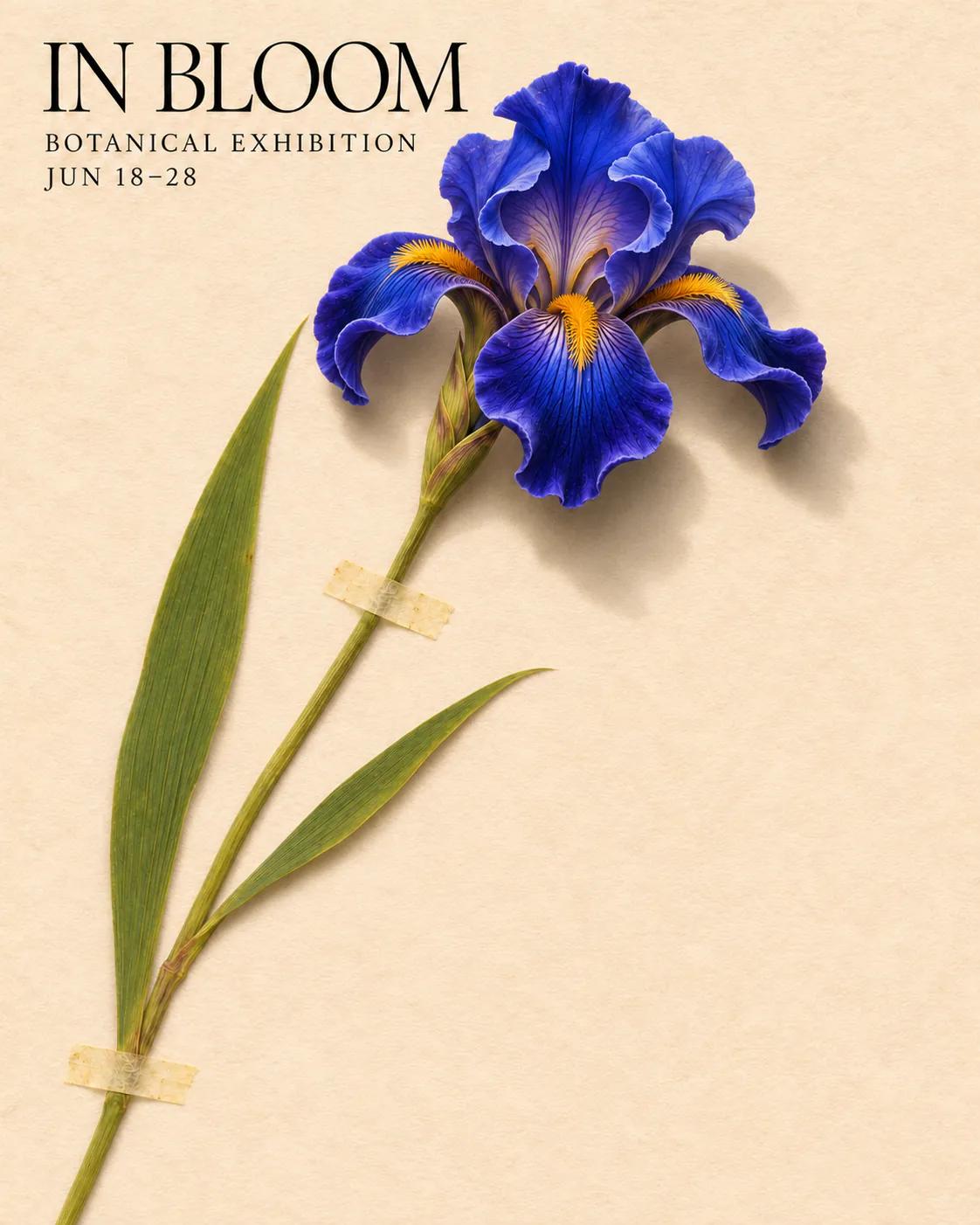
In the iris example, the brief is to open a blue bud on a finished exhibition poster and preserve the layout. Here’s how to review it.
Give the flower room to open
Ask GPT Image 2.6 to open only the blue bud to the right of the title. Keep the stem, tape, paper grain and lettering in place.
Fix the petal edge you can point to
If the bloom looks cut out, ask GPT Image 2.6 to soften the shadow beneath the outer petal. Match the light on the stem and keep the fine ridges visible.
Compare both posters at the same size
Place the reference and the GPT Image 2.6 result side by side at display size. If the date line moved or the flower crowds the title, start the next pass from the original reference.
Before your next GPT Image 2.6 edit
How should I describe a GPT Image 2.6 edit?
Say what changes, where it changes and what should remain. A concrete instruction about a flower or backdrop is more useful than a request to improve everything.
Can I guide GPT Image 2.6 with several images?
You can add up to 16 references. Assign each a role in the prompt. Flare and Sunburst also accept a mask or markup, used separately.
Which GPT Image 2.6 format fits my handoff?
Choose PNG or WebP for compatible transparency settings. Flare and Sunburst additionally offer JPEG, GIF and SVG; Economy offers PNG and text-to-image GIF.
What will this revision cost?
An Economy PNG uses 8 site credits. Other choices reserve an estimate and settle against actual usage; unused reserved credits are released. A ready result waits if you need a top-up.
Does transparent output still need checking?
Yes. Inspect the exported alpha channel, soft shadows and fine edges against the intended background. Those details determine how neatly the asset sits in your composition.
How do I check the final size?
Look at the downloaded dimensions, not just the resolution label. GPT Image 2.6 combines the selected tier with the aspect ratio, so 4K does not always mean 4096 pixels.
Give GPT Image 2.6 one clear revision
Bring the image you want to keep working on. Describe the change, preserve the useful decisions and inspect the result in context.
Start a revision