
Make a single image or design a whole page with Kling Image 4.0
A banner idea and a landing-page plan call for different starting points. Bring a written brief or the photos you already have, then choose how much of the design you want to see in one image.
Kling Image 4.0
Choose a task type to see the settings and references it accepts.
Choose Model
Workflow
0/20000 characters
Batch mode
Sign in to use batch and repeat generation.
Choose a mode from what you already have
Start with your available material and decide where the finished image will be used.
Standard image
Use a short prompt when the subject and framing are clear. Switch to reference image mode if a particular silhouette, material, or piece of packaging needs to guide the shot.
Series images
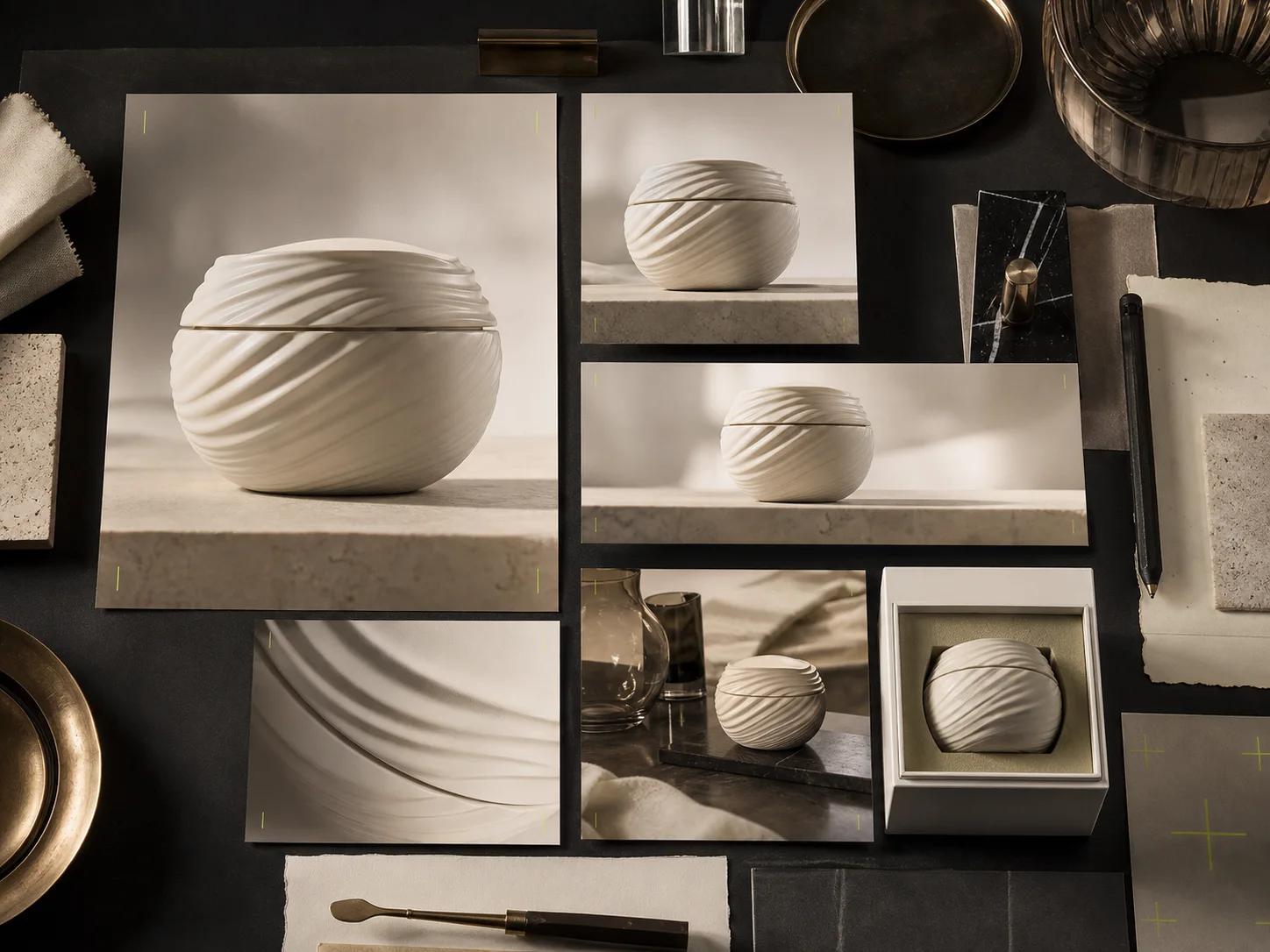
Use a series when several placements should feel connected. Say what should carry across the images and what each one should show differently.
Ecommerce long image
Start with clear photos of the product. Choose a page length that gives you room to show the details, demonstrate the product in use, and finish with a next step.
Webpage long image
Plan the sections in reading order. Give the opening one visual focus, then let the middle sections lead to the final action. If you add references, use the style image for palette and graphic mood and the subject image for the object you want to feature.
Frequently asked questions
What references can I use?
Reference image mode accepts up to 10 images. Ecommerce mode requires 1–3 product photos. Webpage mode supports a separate style and subject reference.
How many images does each request return?
Standard mode creates 1–9 images and series mode creates 2–10 coordinated images. Each long-image request creates one vertical layout.