
Nano Banana 2.1 AI Image Generator
Keep a promising reference and investigate the next design decision. Explore a different surface, a quieter background or a new lighting direction with Nano Banana 2.1 inside Seedream 4.5.
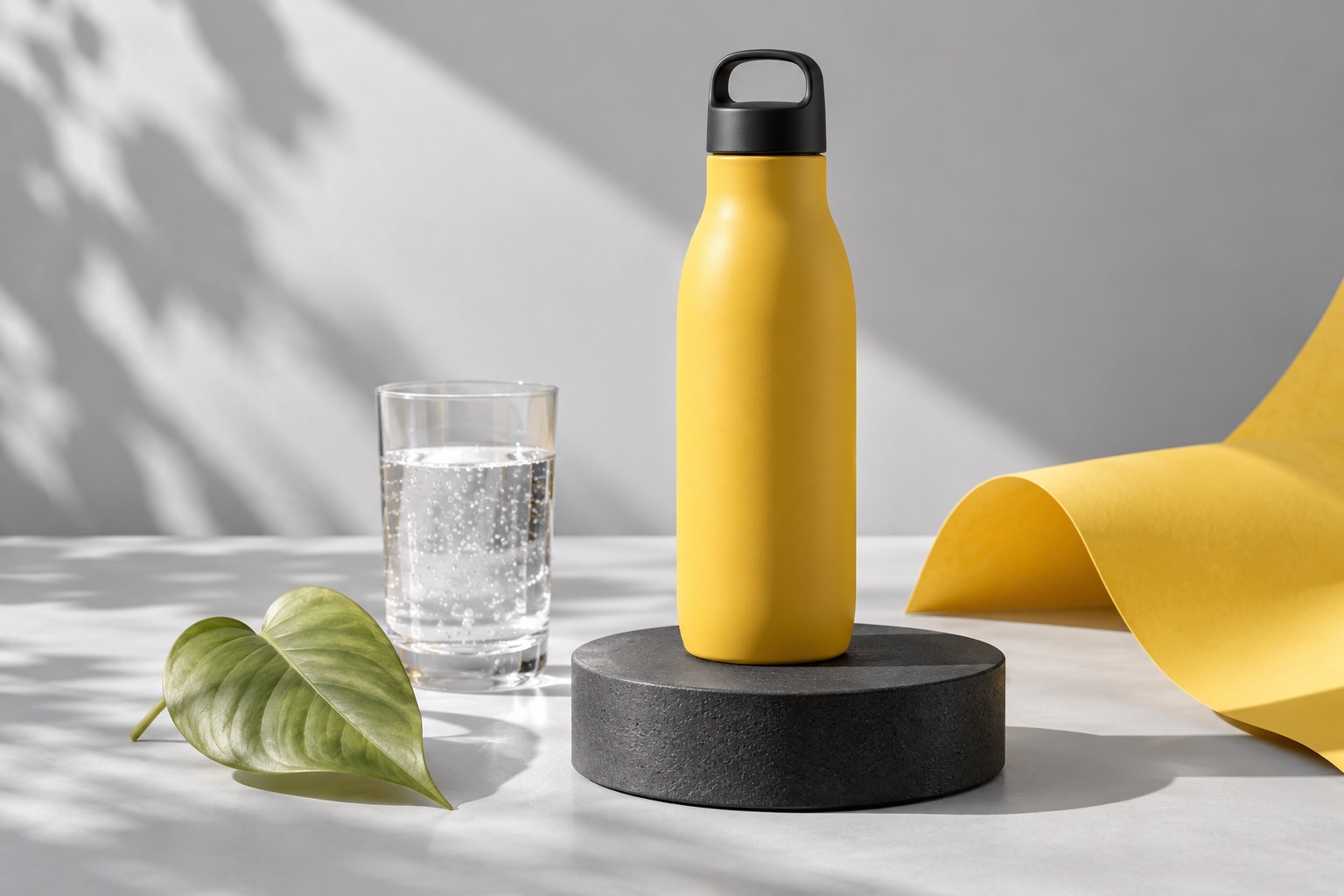
Nano Banana 2.1 AI Image Generator
Use text-to-image for a new study or image-to-image for a reference edit. State the intended revision and the details to retain before choosing the output settings.
Choose Model
Workflow
0/20000 characters
Batch mode
Sign in to use batch and repeat generation.
Nano Banana 2.1 · Revision Results
A reference-first approach to Nano Banana 2.1
Nano Banana 2.1 AI Image Generator gives a written revision brief a place in the Seedream 4.5 design workflow. Bring a reference when the viewpoint, object outline or arrangement already works; use a text prompt when the study has no starting image. The aim is to make a design decision visible: a brushed surface instead of polished metal, a softer shadow, or less activity behind the subject. Describe the intended change alongside the details that should remain recognisable.
Treat each result as a proposal to inspect. Nano Banana 2.1 supports reference edits, so compare the revised image with the original to review its outlines, proportions and fine details. Record which change helped and carry that design decision into the next brief. You can open another model in the same workspace with the same instructions, keeping the reference and review criteria steady. Your preferred direction then comes from a visible comparison that you can explain in your design notes.
Five decisions to make before an edit
Nano Banana 2.1 AI Image Generator works from the instructions you provide. These five decisions help you explain the scope of a revision and give the resulting image a useful review standard.
Nano Banana 2.1: Describe the retained structure
Name the features that anchor the reference: the furniture arrangement, camera height, outline of a jacket or spacing between objects. Put these constraints before the requested edit. If several references are used, explain what each contributes rather than asking the model to infer their relationship. Compare the resulting proportions against the starting image before accepting the revision.
Nano Banana 2.1: Scope a local design change
Name the part to alter and the adjacent details to retain: the rear wall, one fabric panel or the open space behind a face. Describe where the new surface begins and ends, then check the surrounding contours in the result. Keep the first request narrow enough to identify how the model interpreted the boundary and which detail needs a more specific instruction next.
Nano Banana 2.1: Study illumination deliberately
Specify where the light originates, how broad it is and which surface should catch the highlight. A soft window source and a hard overhead source produce different design readings. In Nano Banana 2.1 AI Image Generator, compare those instructions using the same reference and framing; inspect the cast shadow as well as the bright areas.
Nano Banana 2.1: Explore a material vocabulary
Describe a material through visible properties: rough plaster, woven linen, translucent glass or fine brushed grain. Colour alone does not explain reflectivity or texture scale. Ask for one surface change while retaining the surrounding objects, then check seams, reflections and contact edges. Keep the more convincing description in the next revision brief.
Choose settings around the review task
Use auto or one of the 15 aspect ratios, select 1K, 2K or 4K, and choose JPG or PNG. Start with a setting that lets you evaluate composition; inspect a higher-resolution result when fine detail becomes relevant. The interface shows the credit requirement before submission, so review that value when changing resolution or repeating a task.
Three briefs for Nano Banana 2.1 AI Image Generator
Each brief separates retained details from a requested revision. Replace the described reference with your own image, then edit the constraints to reflect what actually matters in the design.
Nano Banana 2.1: Revise a room surface
A material experiment that keeps the spatial layout as the review anchor.
Use the uploaded room photograph as the starting reference. Retain the window positions, camera viewpoint, floor pattern and furniture outlines. Change the rear wall finish to warm off-white limewash with subtle irregular texture. Keep all other walls and objects unchanged as far as possible. Light the room softly from its existing window. Do not introduce new furniture, signs or decorative objects. The revised wall should look connected to the original room, with plausible corner shadows.
Review note: compare wall corners and floor edges with the reference before judging the new texture. Try one alternative finish in the next pass.
Nano Banana 2.1: Simplify a portrait background
A backdrop revision with clear instructions about the foreground subject.
Use the uploaded portrait as the reference. Retain the person's pose, face direction, hairstyle, clothing silhouette and camera angle as closely as possible. Replace the busy background with a softly defocused muted blue interior. Preserve the original direction of light on the face and a believable transition around hair and shoulders. Add no accessories and no written text. Keep the person the visual focus; the new surroundings should be quiet rather than featureless.
Review note: inspect hair edges, shoulders and the direction of the face shadow. Narrow the next request to any detail that moved unexpectedly.
A controlled object-lighting study
Start from text when you need to explore light before selecting a reference.
Create a design study of a single folded linen cloth resting on a low rectangular stone block. Use a neutral mid-gray studio background and a fixed three-quarter viewpoint. Place one broad soft light high on the left so the folds produce gentle shadows and the weave remains visible. Use restrained natural colours, realistic contact shadows and no additional props or text. The image should make the difference between woven fabric and mineral texture easy to inspect.
Review note: retain the subject and viewpoint in a second brief, changing only the light from broad and soft to narrow and directional.
A Nano Banana 2.1 AI Image Generator review sequence
Four steps connect the starting reference, the revision brief and the design decision. Keep your own review notes beside the result so the next request has a specific purpose.
- 1
Nano Banana 2.1: Establish a reference baseline
Choose an image with a readable subject and the viewpoint you want to retain. Image-to-image accepts up to 10 JPEG, PNG or WebP references, each no larger than 10 MB in this workspace. If you do not have a reference, use text-to-image to propose a starting study. Identify which details will be checked later.
- 2
Nano Banana 2.1: Write one revision objective
Separate the retained features from the proposed change. A useful objective names a surface, background element or light source and explains how it should look after the edit. Keep the prompt within 20,000 characters. Give multiple references distinct roles, such as composition guidance and a material cue, rather than conflicting instructions.
- 3
Set the review frame and submit
Choose auto when no fixed framing is required, or pick a supported ratio. Select 1K, 2K or 4K and JPG or PNG, then check the displayed credit cost. Nano Banana 2.1 AI Image Generator returns one image per task; use separate briefs or the available task-repeat controls when you need more comparison images.
- 4
Nano Banana 2.1: Compare and record the decision
Inspect the result next to the starting reference. Note whether the requested change worked, which retained detail shifted and what deserves a second pass. Download a useful image, keep the prompt with your own notes and make the next instruction more specific. A visible improvement can guide the design even when another part needs refinement.
Visual studies for the Nano Banana 2.1 revision desk
The gallery is a set of visual references for discussing surface, spacing and continuity. It illustrates possible review topics; use your own source image to test a specific revision.
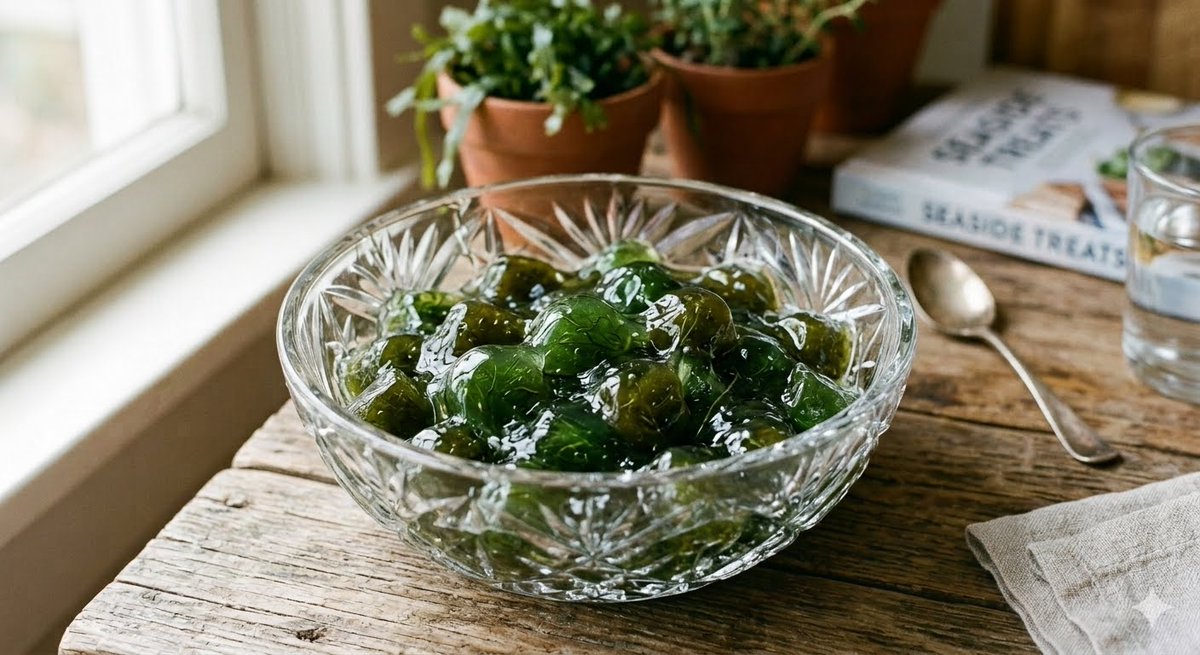
Nano Banana 2.1: Surface and contact-shadow study
Compare a matte surface with a reflective one while keeping the arrangement simple. In a still-life reference, ask for one material change and review the shadows where objects meet the table. The Nano Banana 2.1 AI Image Generator result is useful for deciding how a texture reads; check that the object's outline and spacing have not drifted.
Open the Nano Banana 2 comparison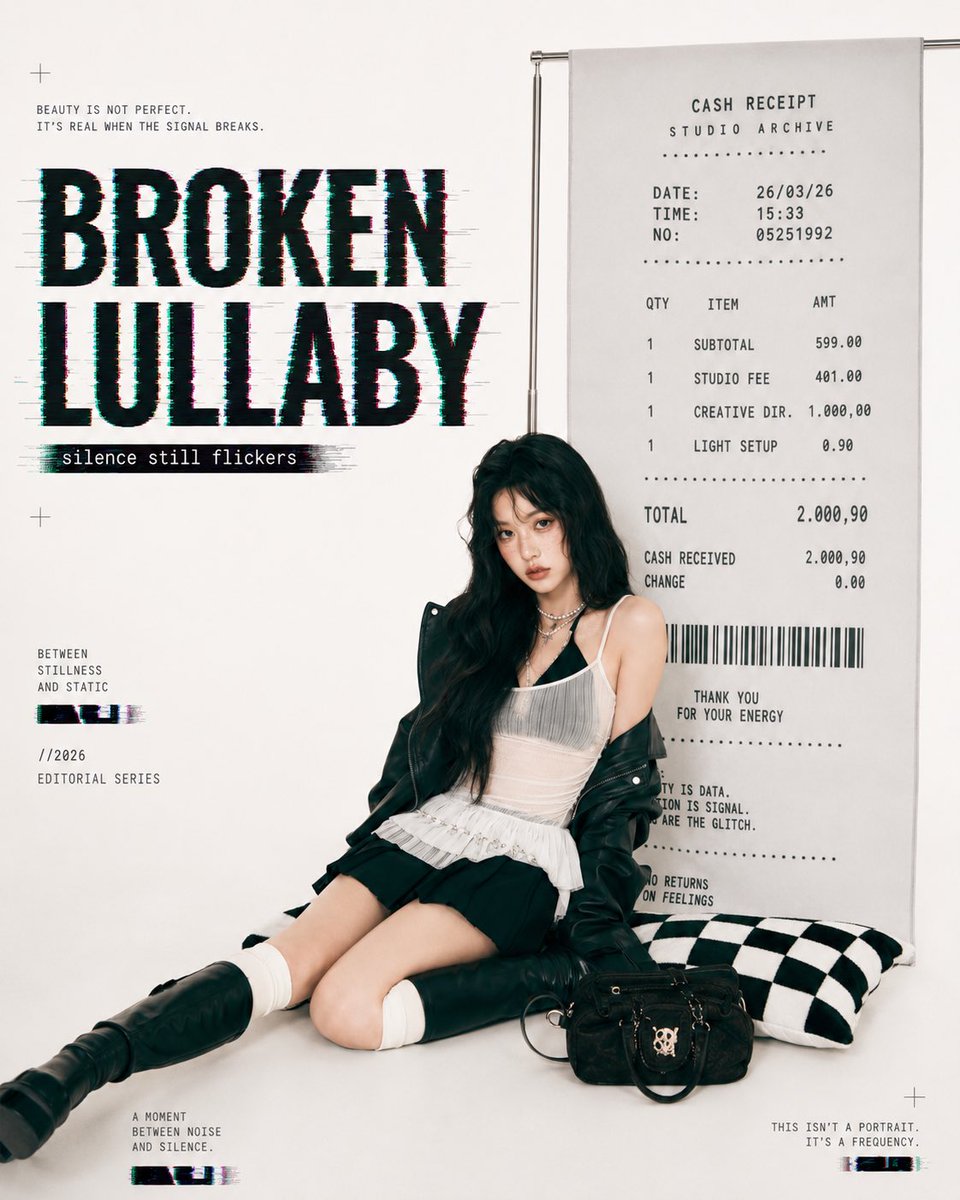
Nano Banana 2.1: Foreground and background hierarchy
Use a portrait or editorial reference to test a quieter background without changing the intended focal point. Describe the subject outline and the backdrop separately. Review whether the face remains readable, edges stay plausible and the revised surroundings support the original composition. A layout study can then be continued in Qwen Image 3.0.
Inspect Qwen Image 3.0 layouts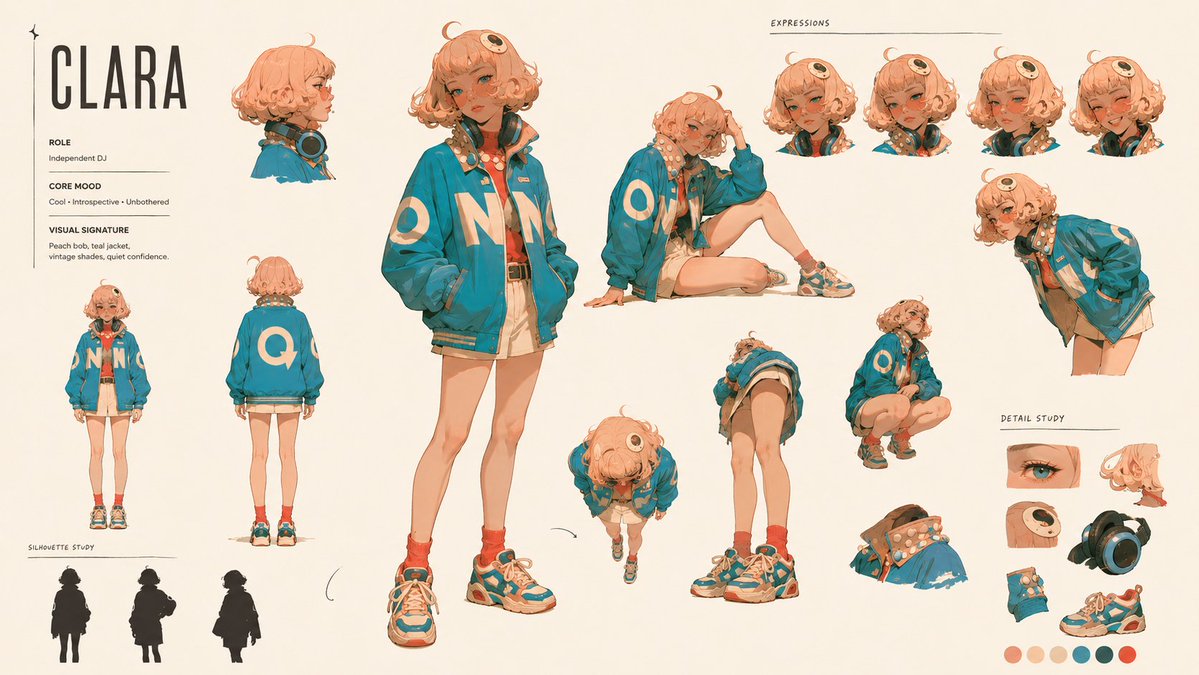
Character continuity across a revision
A character sheet makes deviations easier to spot. Use Nano Banana 2.1 AI Image Generator to propose a clothing material or setting change, then compare identifying features and silhouette with the reference. Describe the retained traits explicitly; examine hands, fastenings and facial details before carrying the revised direction into another scene.
Compare a GPT Image 2.5 study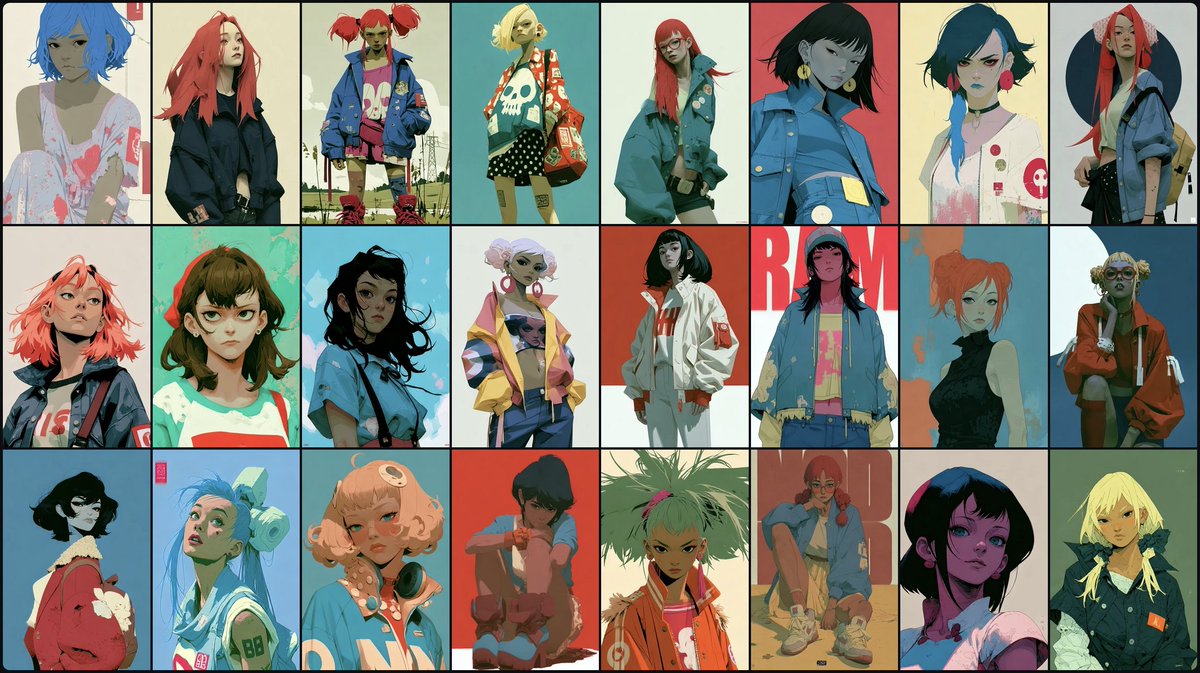
A board for design-review notes
Turn a design review into a few testable questions about colour, texture and spacing. Give each question its own prompt and retain the result alongside your notes. Nano Banana 2.1 helps explore these choices in the shared workspace; a parallel Seedream 5.0 Flash test can offer another image to compare under the same brief.
Open a Seedream 5.0 Flash testRun a parallel study with another model
Keep Nano Banana 2.1 AI Image Generator as one route through the Seedream 4.5 workspace. For a useful comparison, hold the reference and brief steady while checking the settings offered on each model page.
| Model workspace | Comparison question | Review focus |
|---|---|---|
| Nano Banana 2 | Comparison questionHow does the same reference edit interpret your retained details? | Review focusCompare silhouette, framing and background changes rather than assuming identical results. |
| Seedream 5.0 Pro | Comparison questionDoes a second rendering help resolve the material or scene direction? | Review focusOpen its own controls and inspect the same corners, surfaces and object relationships. |
| Seedream 5.0 Lite | Comparison questionWould a fresh text-based study clarify the current design question? | Review focusKeep the important constraints in the brief and evaluate the proposed composition. |
| GPT Image 2.5 | Comparison questionHow does an alternative edit follow the foreground and backdrop instructions? | Review focusCheck the selected variant, then compare the focal point and transitions around edges. |
| Seedream 5.0 Flash | Comparison questionCan another interpretation expose a choice worth testing again? | Review focusUse its displayed settings and compare the image against the same review notes. |
Nano Banana 2.1 AI Image Generator: editing questions
Answers for reference-based revisions, output settings and practical design reviews in Seedream 4.5.
Nano Banana 2.1 accepts a written brief and optional image references, so you can describe an edit without rebuilding the whole design concept from scratch. Choose image-to-image when a starting reference matters, and explain both the requested change and the details to retain. Treat the output as a revision proposal to compare with that reference.
Choose one review question, such as whether the wall should be rougher or the background less busy. Upload a suitable reference in image-to-image, write the retained details and specify that one change. Keep the first result nearby while writing a more focused follow-up brief.
You can name a particular wall, garment panel or background region in the prompt and ask for the remaining parts to stay close to the reference. Describe the neighbouring edges as well as the intended change. After the revision, compare the outlines and small details with your starting image to decide whether to refine the same area or move to the next one.
The Nano Banana 2.1 workspace accepts up to 10 reference files in JPEG, PNG or WebP, with a site limit of 10 MB per file. Use only references that contribute to the brief and explain their roles. A composition reference and a material reference should not silently compete for the same feature.
The integrated model offers auto and 14 fixed aspect ratios, 1K, 2K or 4K resolution, and JPG or PNG output. Each task returns one image. Pick the settings that suit the review question and check the displayed credits before submitting; other models have their own controls.
State the viewpoint, outline and important object relationships explicitly, preferably near the start of the edit brief. Keep the reference clear enough to inspect those features. Generated proportions may still change, so compare the result against the original before accepting it as the next design baseline.
Name the material and its visible properties, including roughness, translucency, grain direction or weave scale. Explain which surface receives it and which nearby surfaces stay as they are. Review contact shadows and reflections, since a plausible texture needs to belong to the surrounding scene.
Retain the reference, framing and material descriptions, then change only the light instruction between requests. Specify the source position and whether the light is broad or narrow. Review the shadows as well as the highlights; a brighter image alone does not explain which direction serves the design better.
Record the reference, the prompt, the chosen settings and the design question being tested. Add a short observation about the intended edit and any retained detail that shifted. Keep these notes yourself beside the downloaded result; they help you explain the next revision without relying on memory.
Sign in and review your available credits and the cost currently displayed for the chosen settings. Define the design questions before starting, then separate them into individual tasks. Keep notes beside the versions you approve, record which changes are worth retaining and leave room in your budget for the next round of review.
Make the next revision easier to judge
Bring one reference and one design question to Nano Banana 2.1 AI Image Generator. Describe what stays, request a focused change and decide from the image whether the direction is worth keeping.